Install Cheel
After creating your Cheel account according to the instructions in the article Create your Cheel account , you can proceed to download and install the application .
1. Prerequisites
You can install Cheel on one or more computers in your company. Here are the minimum recommended configurations:
1.1 Minimum recommended configuration
- Operating system : Windows 10 or later
- Screen resolution : 1920x1080
- Processor : Dual Core 2GHz
- Memory : 8 GB (1 GB per user)
- Disk space : 1 GB
2. Install Cheel
- Open your browser and enter the following address:
https://download.cheel.ch - Click on Download.
- Double-click the downloaded file cheel_setup_(version).exe
- The installation assistant starts.

If the installation wizard doesn't start, your antivirus software may have blocked it. Temporarily disable your antivirus software and restart the installation. You can re-enable your antivirus software once the installation is complete.
3. Installation Types
In the Application Installation Type step , two types are available and determine the installation location and update method:
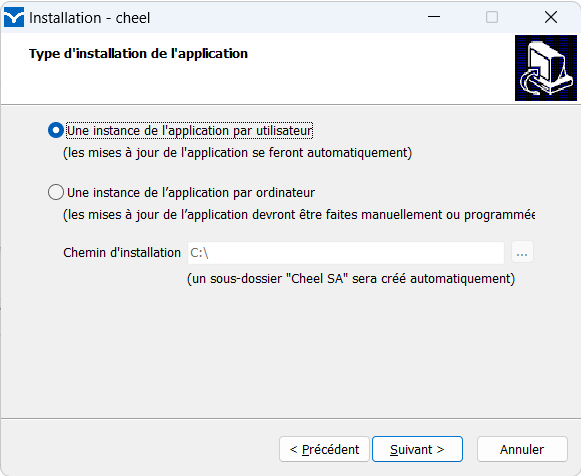
3.1 One instance per user
The specifics of the installation , one instance of the application per user, are as follows:
- Updates are automatic .
- The application is installed in the user's profile .
3.2 One instance per computer
The specifics of installing an instance of the application per computer are as follows:
- This type of installation is particularly applicable to Terminal Servers (Terminal Server, Citrix, etc.) or computers that need to be updated by a System Administrator.
- Updates must be triggered manually or scheduled . Refer to the startup settings to run the update manually or automatically.
- The application can be installed in a folder of your choice. By default, the location is: C:\Cheel SA\Cheel
- Important: Do not install Cheel ERP in " C: \Program Files" . This system folder is protected and prevents automated updates.
4. Application startup settings
Cheel ERP starts using the cheel.launcher.exe application which accepts parameters .
For example, if you have installed Cheel ERP on a server using Terminal Services (Terminal Server), you can create a scheduled task that will run the update automatically using the /updateonly parameter.
4.1 Startup parameters for a per-user instance
This is the standard configuration for installation on a traditional workstation. The application is installed in the user's profile to enable automatic updates.
- No parameters
- Checks for the availability of an update.
- Start the update, if available.
- Start the application.
- /forceupdate
- Checks for the availability of an update.
- Start the update, if available.
- Start the application.
- /updateonly
- Checks for the availability of an update.
- Start the update, if available.
- Quit immediately without starting the application.
- /noupdate
- Starts the application without update control
4.2 Startup parameters for a per-computer instance
In this particular configuration, the application is installed in a folder shared by all users. By default, the application starts without automatic update control. This type of installation is suitable for terminal servers, such as Terminal Services, Citrix, etc. Users typically do not have permission to update applications, and a system administrator handles updates periodically, outside of business hours.
- No parameters
- This is the default configuration where the application is started without automatic update control.
- /forceupdate
- Checks for the availability of an update.
- Start the update, if available.
- Start the application.
- /updateonly
This setting is suitable for updating the application without starting it. It can be used in a special shortcut or in a scheduled task that runs outside of users' active hours. - Checks for the availability of an update.
- Start the update, if available.
- Quit immediately without starting the application.
- /noupdate
- Starts the application without checking for updates.