Manage users
User management allows you to add, modify or delete a user, change their password or enable two-factor authentication.
Create a user
- Click on the User icon in the top right corner, then select Customer Area :
- In the left-hand menu, click on Users :
- The Users page appears. Click the Add button in the top right corner of the page:
- On the New User page, fill in the required information, then click the Register button in the bottom right corner. A confirmation email will be sent to the user. They must click the link in the email to activate their account.

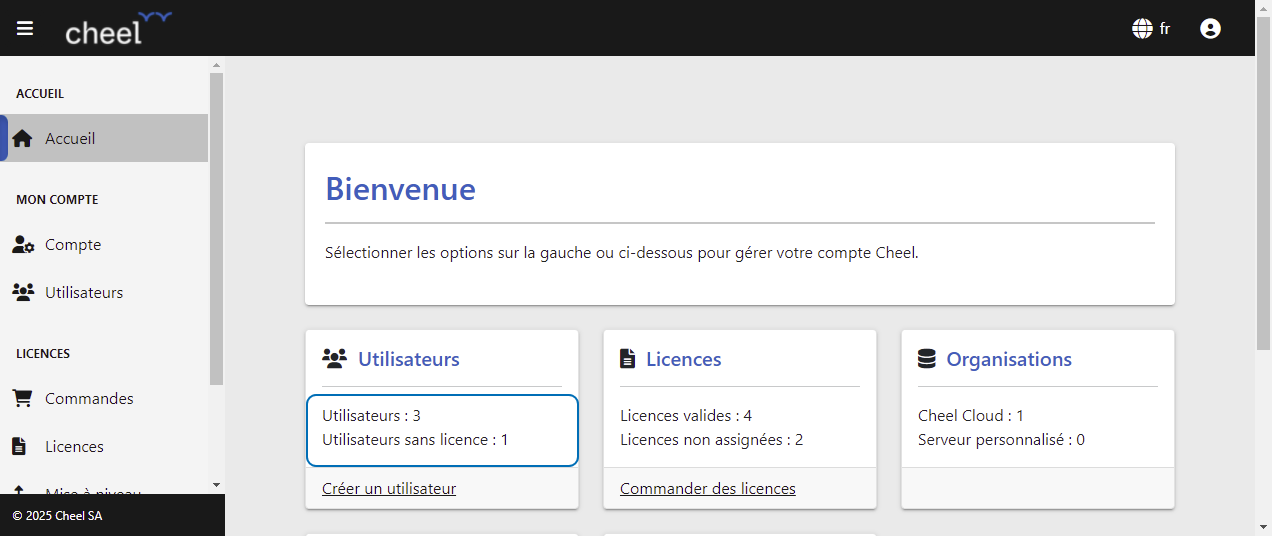
The homepage displays the total number of users created, as well as the number of users not linked to a license:
Change the password of the logged-in user
- Click on the User icon in the top right corner, then select User Information :
- On the User Information page, click the Change button to the right of the Password field:
- On the Change Password page , enter your new password and confirm it. The password must be at least 8 characters long and include:
- 1 capital letter ('A - Z').
- 1 digit ('0 to 9').
- 1 non-alphanumeric character such as: (. , ! ? etc..).
- Click the Save button to confirm the update.
To change another user's password:
- Click on Users in the left menu.
- Open the relevant user and change the password in their profile.
Enable two-factor authentication for the logged-in user
Two-factor authentication (2FA) adds an extra layer of security. Even if a password is compromised, account access remains protected through verification from another device. To enable two-factor authentication for the logged-in user:
- Click on the User icon in the top right corner, then select User Information :
- Activate the Two-Factor Authentication (2FA) toggle switch, located in the upper right corner of the User Information page:
- Follow the on-screen instructions to activate authentication, then click the Validate button in the bottom right corner of the page:The 2FA column on the Users page indicates which users have enabled two-factor authentication:
- The next time you log in, after entering your credentials, enter the code generated by your authentication application:
Delete a user
- Click on the User icon in the top right corner, then select Customer Area :
- In the left-hand menu, click on Users :
- The Users page appears. Locate the user you want to delete, then click the Delete icon to the right of the row:
- On the Delete a user page, click the Delete button to confirm the deletion: